Bleeping & censoring
Bleep swearing and sensitive words — the whole episode, one pass
The Voice Editor scans your transcript against a profanity dictionary in the episode’s language and lists every hit. Censor them all in one click or one at a time, and pick the mask — a beep, a noise, or silence. The word is masked in the transcript and the captions too, so a clean version is clean everywhere.
This is the fast way to make a clean cut of an episode — the version a brand-safe sponsor asks for, or the one you publish without the explicit tag. Doing it by hand means finding each word by ear and dropping a beep over it; here the words are already on the page, so Cast finds them and you approve them.
Censoring is non-destructive, like every edit in Cast. A censored word is muted under the mask, not erased, so you can restore it later — and switch a beep to silence, or a bleep to brown noise, without redoing the work.
One honest limit: a bleeped episode is not automatically brand-safe or advertiser-approved. Marking a show clean or explicit is your call, and platforms leave the judgement to you. Cast gives you a fast, reversible way to produce the clean version — not a guarantee about how a platform or sponsor will treat it.
Set it up: the sound, the mask style, the dictionaries
One screen sets the pass: the cover sound for the episode (Beep 1 kHz by default), Show as — how a censored word reads in the transcript and captions (f***, ****, or [bleep]) — and which dictionaries flag words: the built-in Strong-profanity list for the episode’s language, plus My words for your own terms. Hit Go and Cast scans the whole transcript.
![The Censor setup panel: episode sound (Beep 1 kHz with a change dropdown), a Show as switch for the mask style (f***, ****, [bleep]), the Strong-profanity dictionary of 279 words, a My words box with one custom term, and a Go button.](/tools/cast/docs-media/censor-setup-panel.png)
Scan the whole episode, bleep the lot in one click
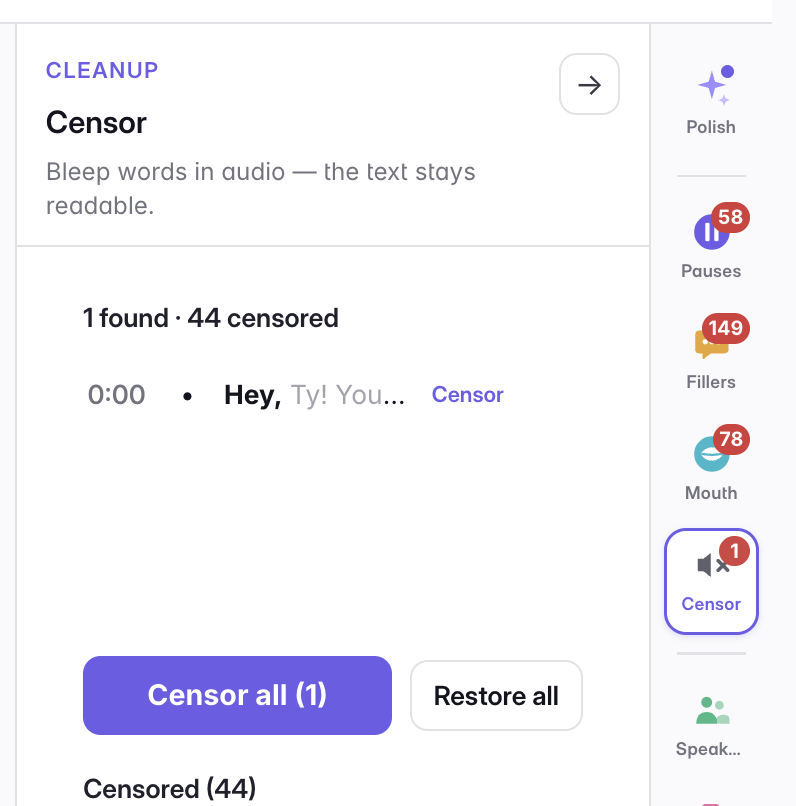
Cast lists every flagged word with its timecode — the word itself in bold, the line it came from alongside — so you can judge each hit without hunting for it. Click a row and the transcript jumps there, with the word highlighted and the playhead parked on it. Censor the lot with Censor all, or take them one at a time; the ⊘ button tells the scan to never flag that word again.
Everything you censored, in one list
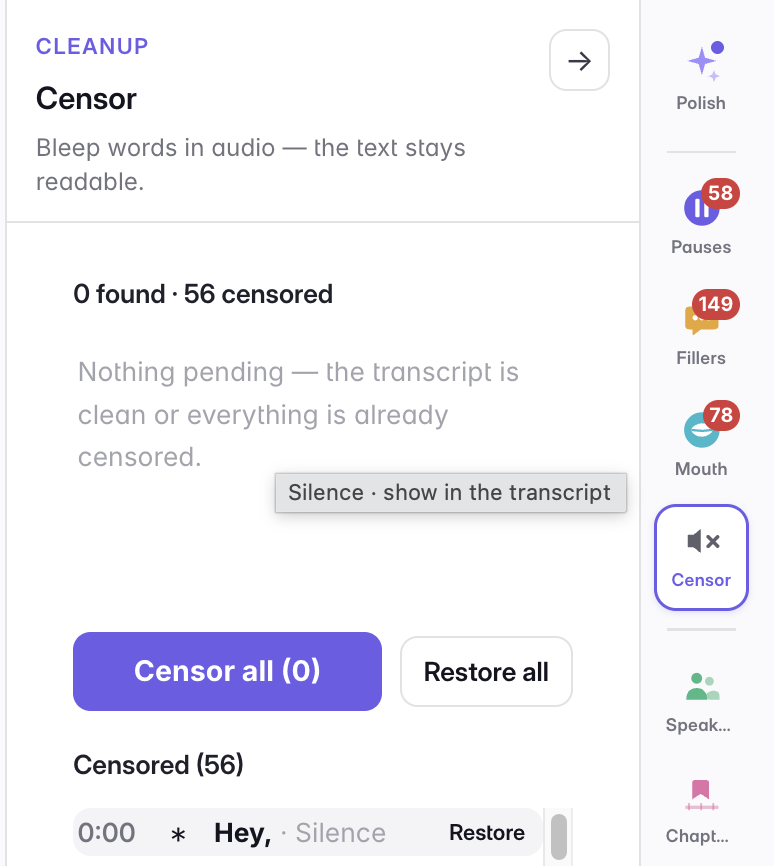
Under the scan results sits Censored (N) — the running list of every bleep in the episode, styled like the Pauses and Fillers lists: the timecode, the covered word, and the cover it plays (Beep 1 kHz, Silence, …). Click a row to see that word in the transcript; Restore on the row brings just that one back, Restore all clears the lot.
Beep, noise, or silence — the cover is yours, per word
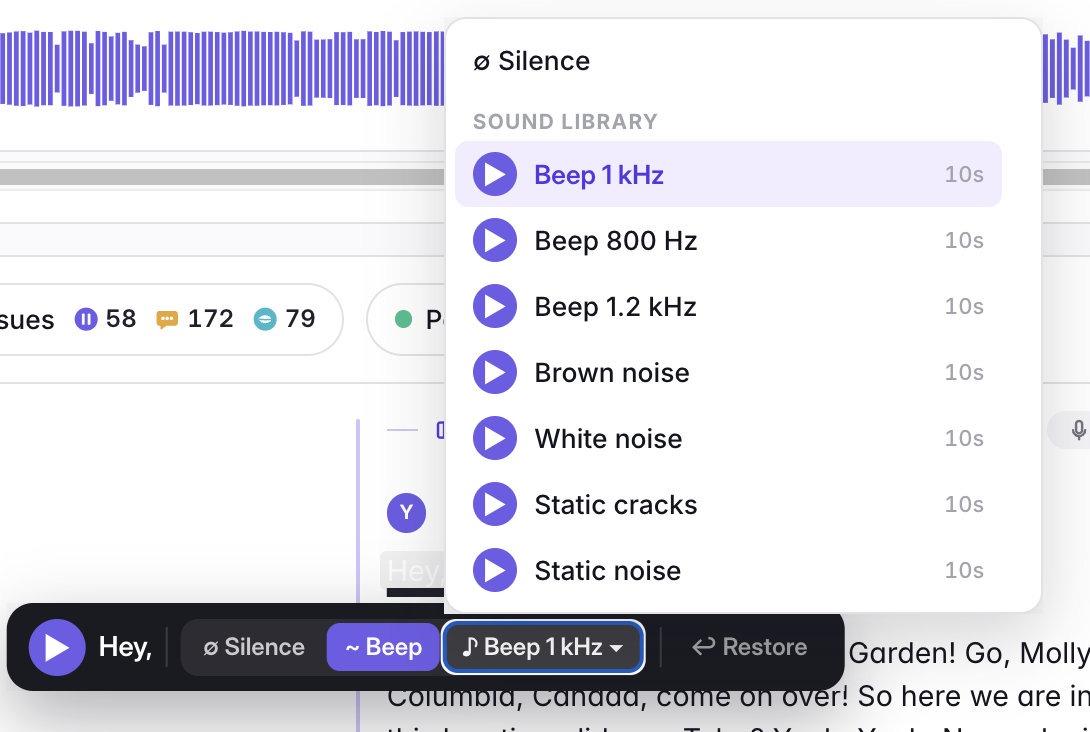
The cover over a censored word is your choice: three beep tones, white, brown or static noise, a crackle, or plain silence. Set a default for the episode, and override it on any single word — click a bleeped word in the transcript and its popover flips between Silence and Beep, or opens the full sound library, each entry previewable in place.
Add your own words — and protect the ones you meant to keep
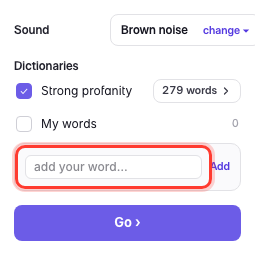
The built-in dictionary covers profanity in the episode’s language. Add your own terms — a client’s name, a spoiler, an unreleased product — and they are flagged the same way; each My-words term can also carry its own cover sound instead of the episode default. And when the dictionary catches a word you meant to keep, mark it Never and it stays untouched, this episode and the next.
Select and bleep anything — names, spoilers, brands
Not every word you want to cover is a swear. Select any phrase in the transcript — a client’s name, an unreleased product, a spoiler you talked around — and the selection popover has a Censor action that drops a bleep over exactly those words. The text stays on the page; the audio underneath is masked. It is the manual counterpart to the dictionary scan, for the one-offs a word list can’t know about.
To change the cover on a word already bleeped, click it: the popover swaps its beep for noise or silence, and offers Apply to all when the same word appears more than once — so every instance changes together.

How the word reads on the page: masked, readable, or dimmed
The text side of a bleep is a display choice. Masked hides the word behind the mask style you picked — f***, ****, or [bleep] — Readable keeps it legible for your own editing, and Dimmed greys it out without hiding it. The mask style is one setting surfaced in three places — the Censor panel’s Show as row, the transcript’s Aa Display menu, and the Export dialog — change it in any of them and the transcript view and every text export follow.
![The transcript’s Aa Display menu with the Censored words section: Masked, Readable, and Dimmed display modes, and the mask style choices f***, ****, and [bleep].](/tools/cast/docs-media/censor-display-modes.png)
The bleep ships in the file and the captions, not just on screen
A censored word is masked everywhere the episode goes, not only in the editor. On export, Cast hard-mutes the original word in the rendered audio and lays the beep over it — the mask is baked into the MP3, not a screen preview — so the file you publish is genuinely clean. The captions are masked to match, so the word never leaks in the transcript a platform reads. Audio and text stay clean together.
Last updated