




You can get Suno stems two ways. Suno’s own Get Stems menu needs a Pro or Premier subscription and spends 50 credits on an Auto Split of up to 12 stems, according to Suno’s help centre. The other way is a separate splitter that takes the MP3 or WAV you already downloaded and gives you back vocals, drums, bass and the rest. This post is for anyone with a finished AI song and a mix that needs fixing: the vocal is too quiet, the low end is muddy, the drums don’t hit. It covers both routes to Suno stems, which file to start from, how to line the parts up in a DAW (the recording software: Ableton, Logic, Reaper, FL Studio), the three usual fixes and the licence rule that splitting does not change.

Suno stems: the built-in button costs credits and a paid plan
Inside the app, separation is a subscriber feature with three split types, and each one costs credits. Suno’s help page on stems lists Auto Split at up to 12 parts for 50 credits per extraction, on Pro and Premier. Split from Mix pulls out one instrument or vocal plus a “complement track” (everything else) for 10 credits per stem. Advanced Split lets you choose from “a list of nearly 100 instruments”. It is Premier only.
The credit maths has one wrinkle. Suno’s article on advanced stem separation counts Split from Mix as 20 credits in total for the two files it creates. That is the same 10 per file, written another way. (Two help pages, one number, two phrasings. Somebody in support has answered this ticket before.)
To start, open the More Actions (…) menu next to a song, pick Get Stems, choose a split type and press Extract. In Studio, the company’s browser workstation, you right-click a clip on the timeline and choose Split Stems instead. If you live in Ableton, Suno has also been testing a bridge into Live, which we covered in our post on the Suno Bridge beta.
Downloading the separated files does not use up your download allowance. Suno’s page on file types says individual stem files “do not count as additional downloads beyond the song itself.” So you pay in credits, not downloads. Cheap, if you already have the credits.
Free-plan Suno songs split fine, but the stems stay Suno’s
If you made the song on the free plan, Get Stems isn’t in your menu. So a third-party splitter is the only way to get Suno stems out of it. Technically, that works on any MP3. Legally, nothing about the song changes. Suno’s ownership article is blunt about the free tier: on the Basic (free) plan, “Suno is the owner of the songs,” and you may use them for non-commercial purposes. Subscribe to Pro or Premier and “you own the songs,” and Suno says you should be the only one allowed to monetise them.
What counts is the plan you were on when you made the song. A free-plan song is still a free-plan song after you split it, after you remix it, and after you rename the folder “FINAL_final_mine”. Splitting is like slicing a borrowed cake. You get more pieces. The owner stays the same.
That affects what you can do with the parts. Practising a mix, learning how a drum bus behaves, making a remix for your own ears: fine on any plan. But releasing the result, putting it under a monetised video or selling a beat built on the vocal is a different matter. Check which plan you were on before you touch the EQ. We wrote up the wider pattern in what free AI song plans let you keep, and it applies here line by line.
The same goes for songs you didn’t generate. Splitting someone else’s track to study it is normal practice. Uploading those parts is not. That needs a licence, because a Suno stem pulled from a stranger’s song still belongs to the stranger (or to Suno). Ask first.
Start from the WAV if your plan gives you one
A splitter can only separate what the file still contains, so the source file matters more than the tool when you want clean Suno stems. Free users get one choice. The Download button “will generate a lightweight mp3,” says Suno’s WAV help page. WAV is for Pro and Premier subscribers on suno.com, and downloads from the mobile app default to MP3.
MP3 compression throws away detail it thinks you won’t miss, mostly quiet high frequencies hidden behind louder sounds. A finished mix can survive that. A separation model has a harder time. Some of the cues it uses to tell a hi-hat from a breathy vocal are exactly the ones that went missing. You get swirly cymbals and an “other” track that sounds like it was recorded through a sock.
We learned this the dumb way. We once split an MP3 that had travelled through a messaging app twice. The vocal came out fine, the hats sounded like bacon in a pan, and no EQ in the building could fix it. Anyway.
So, on a paid plan, download the WAV from the desktop site, not the phone. On the free plan, take the MP3 straight from the Download button, never a copy from a chat, a video or a screen recording. Clean Suno stems start with the cleanest file Suno will give you. And don’t convert an MP3 to WAV in the hope of better quality. The file gets bigger. The missing detail stays missing.
Four stems or six: pick the split by what you will mix
Most splitters offer a four-way split (vocals, drums, bass, everything else) and a finer one. Mubert’s Stem Splitter does 4 stems on any account and 6 on higher plans, adding guitar and piano. Auto Split inside Suno goes up to 12 stems. More is not automatically better.
Every extra stem is another guess by the model. When guitar and piano play in the same register, a six-way split has to decide which notes belong to which instrument. The borderline notes then flicker between two files like a bad Wi-Fi signal. If your problem is “the vocal is buried” or “the low end is mud”, four parts fix it with fewer artefacts. Switch to six when you really need to treat guitar or keys separately: a guitar that eats the vocal’s space, say, or a piano you want wider.
There is also a third option people forget, the single-instrument mode. Pick one part (drums, bass, guitar or piano), then remove it or extract it. That’s the right choice when you want a backing track, which we walked through in taking the guitar out of any song. For singing along instead, see our karaoke version guide.
Be honest about what you’ll actually do with the parts. If the plan is “turn the vocal up two clicks and add some compression”, four Suno stems are plenty and twelve are homework.
Splitting Suno stems in the browser, step by step
The browser route takes a few minutes and installs nothing. The run below uses Mubert’s Stem Splitter, which accepts MP3, WAV, FLAC, M4A and even an MP4 video:
- Upload the file you downloaded, the WAV if your plan gave you one.
- Choose 4 stems, 6 stems, or one instrument to remove or extract.
- Solo, mute and turn down parts in the browser before downloading, so you hear any bleed now rather than in the DAW.
- Download. MP3 is available on every plan, and WAV download needs a paid plan.
Without an account you hear a 30-second preview. A free account gets full-length four-stem splits as MP3, up to 20 minutes of songs per month. That’s enough to fix the song you came for and a couple of others you’ll regret making.
If you’d like to compare tools first, we ran one song through six splitters and noted what each free tier actually lets you download. Check the live pricing pages before you commit. Those tiers change more often than the tools do.
Line the stems up at zero and the mix is already there
Put every Suno stem at the very start of the timeline, at sample zero, and press play: you should hear the original song. That’s the test that tells you the import worked. Don’t trim the silence off the front of the quiet parts. A guitar track that opens with eight silent bars is supposed to, because that silence keeps it in time.
Then do three things before you touch any plugins. First, match the project sample rate to the files, or let the DAW convert them on import, so nothing drifts. Second, set the project tempo to the song’s tempo if you want a grid. Then check it by ear, since a generated song isn’t always perfectly on the grid. Third, pull every fader down a few dB. The parts add back up to a finished, loud master, so the sum will clip your mix bus the moment you boost anything.
There’s also a null test worth two minutes. Put the original mix on its own track, flip its polarity (the phase button) and play it against all the stems at unity gain. Whatever you still hear is what the split lost or invented. A faint, fizzy leftover is normal. If a whole vocal line survives the null, the splitter dropped something, and a different split type or a cleaner source file will do better.

Three mix fixes Suno stems make easy
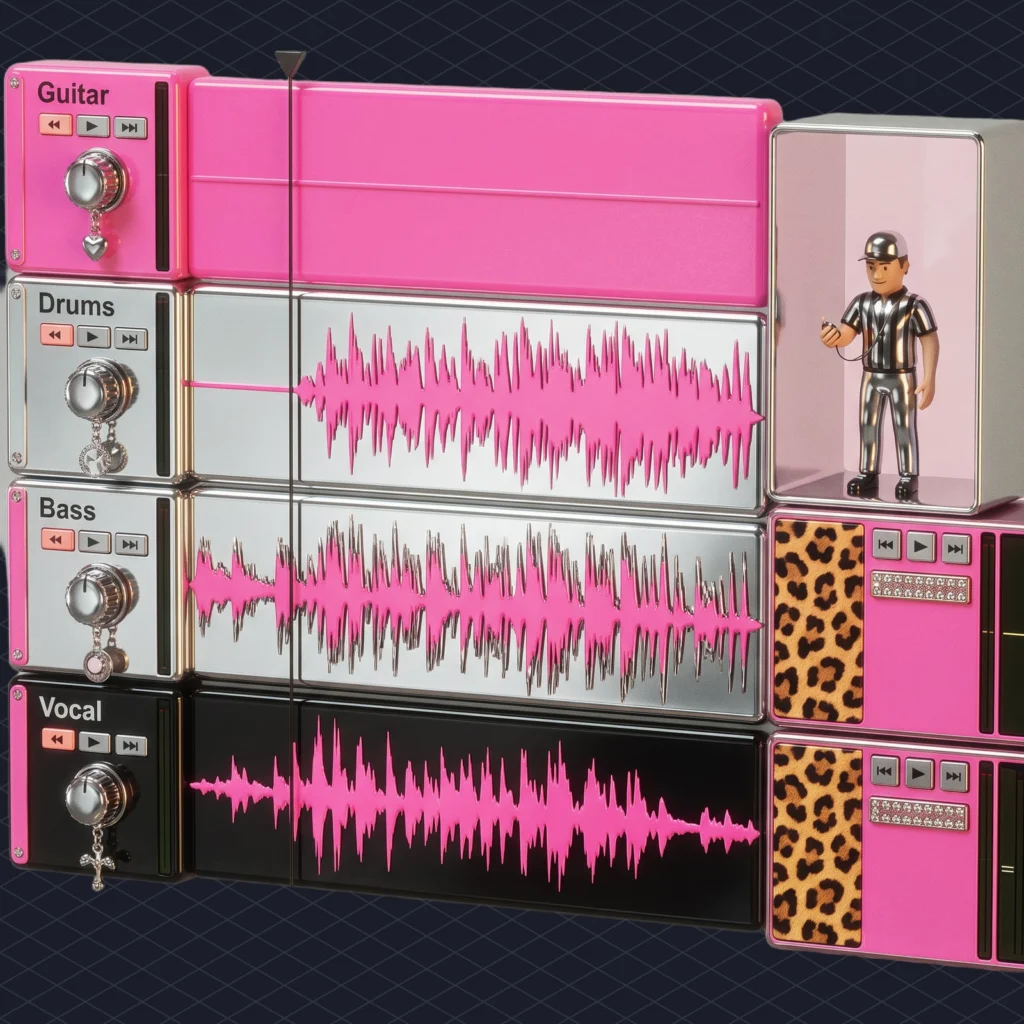
Most AI mixes go wrong in the same three places: a buried vocal, a harsh top end and a muddy low end. Each one is hard on a stereo file and easy once the Suno stems sit on separate tracks. Here they are in the order we’d fix them.
The buried vocal comes first. Raise the vocal stem a little, then carve a small dip in the “other” track around the vocal’s presence range, the upper mids where words become clear. Usually that’s enough. If it still hides, add gentle compression to the vocal alone, so the quiet syllables come up without the band getting louder too.
Harsh top end is next. Generated songs often carry bright, fizzy cymbals, and on a full mix any cut there also dulls the vocal. With a drum stem, you can roll off the drums’ highs or tame them with a de-esser instead. The singer keeps every consonant.
Then the mud. Low mids pile up in the bass and in “other” at the same time, so cut a little from “other” first and leave the bass alone. Drums can also get their own compression without squashing the singer. That’s the whole point of having the parts, and it’s why a split beats one more pass of EQ on the full mix.
One confession. On our first try we fixed all three at once, with nine plugins, and the song came out sounding like a hotel lobby. Fix one thing. Listen. Then move on.
Bleed, reverb and the kick that lives in the bass
In Suno stems, vocals, drums and bass usually separate cleanly. The weak spots are instruments that share a frequency range, and bass against kick drum is the classic one: some kick will bleed into the bass stem. You can’t fully undo it, so stop trying. Treat kick and bass as one low-end group, route both to a bus and process them together. Then the bleed is just more of the same low end instead of a mistake.
Reverb is the other trap when you split Suno songs into stems. A split doesn’t know whether a long tail belongs to the vocal or to the room, so part of it stays on the vocal and part of it ends up in “other”. If the dry vocal sounds oddly close, that’s why. Add a short reverb of your own back on the vocal rather than hunting for the missing tail.
The “other” track deserves its own warning. It collects whatever the model couldn’t name: pads, effects, sometimes backing vocals. Soloed, it can sound awful. In the mix, it usually sounds fine. Judge every part with the others playing, because nobody will ever hear your stems soloed except you at 2 a.m.
And keep expectations sane. A split gives you control over a finished song, not the original multitrack session. If you want the cleanest possible parts, the answer is still a fresh generation with separation done at the source. For a remix rather than a repair, our remix workflow post covers the next steps.
Bounce the mix, keep the folder, write down the plan
When the mix is done, export it as a WAV at the project’s sample rate, then make an MP3 from that if a platform wants one. Do it in that order. An MP3 made from a full-quality bounce loses less than one re-encoded from another MP3. Name the export with the date and the plan you were on, because six months from now nobody will remember.
Keep the folder of Suno stems next to the bounce. A remix, a shorter edit for a video or an instrumental version all start from the same files, and splitting again costs credits or minutes each time. A Suno song split once and saved properly gives you stems for every version you’ll want later.
If the track is going anywhere public, check the licence one more time. The free-plan ownership rule doesn’t expire because you made a nice mix. If a monetised video is next, read the terms first. For music that starts out cleared, our guide to where no copyright music actually comes from lists the five real sources.
A checklist for mixing Suno stems this week
- Check which plan you were on when you made the song before you plan to release anything.
- Download the WAV from the desktop site if you are on Pro or Premier.
- Take the free-plan MP3 straight from the Download button, never from a chat or a video.
- Split Suno songs into 4 stems first, and move to 6 only when guitar or keys need their own treatment.
- Put all the Suno stems at sample zero and confirm the sum plays back as the original song.
- Run the polarity null test against the original mix to hear what the split lost.
- Group kick and bass on one bus instead of fighting the bleed.
- Upload your file to the Stem Splitter and fix the vocal level before lunch.
More slices, same cake. At least now you can turn up the frosting.






 Who we are


