



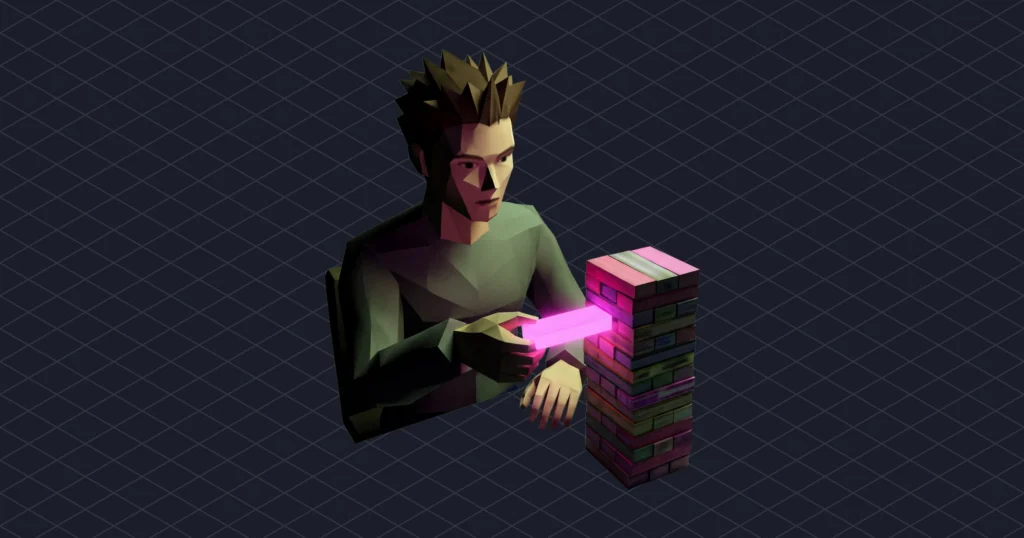
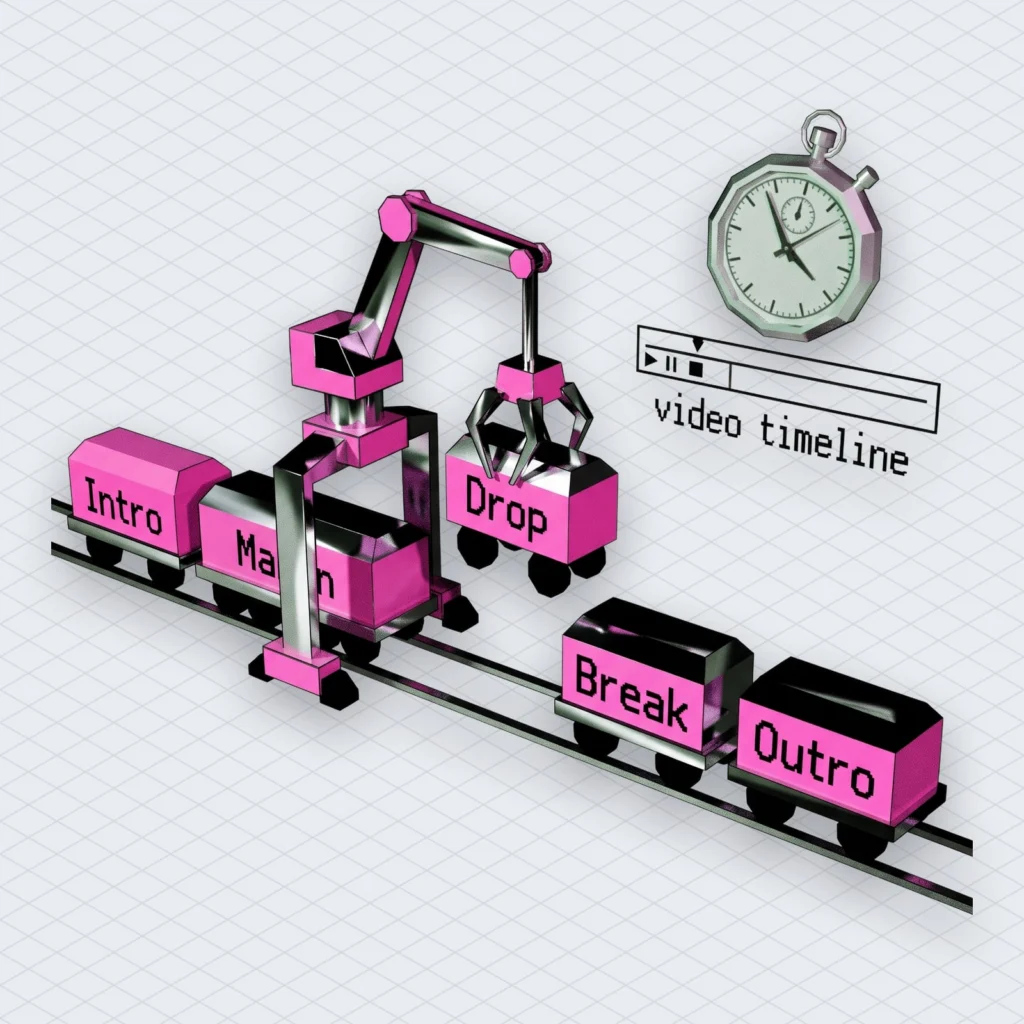
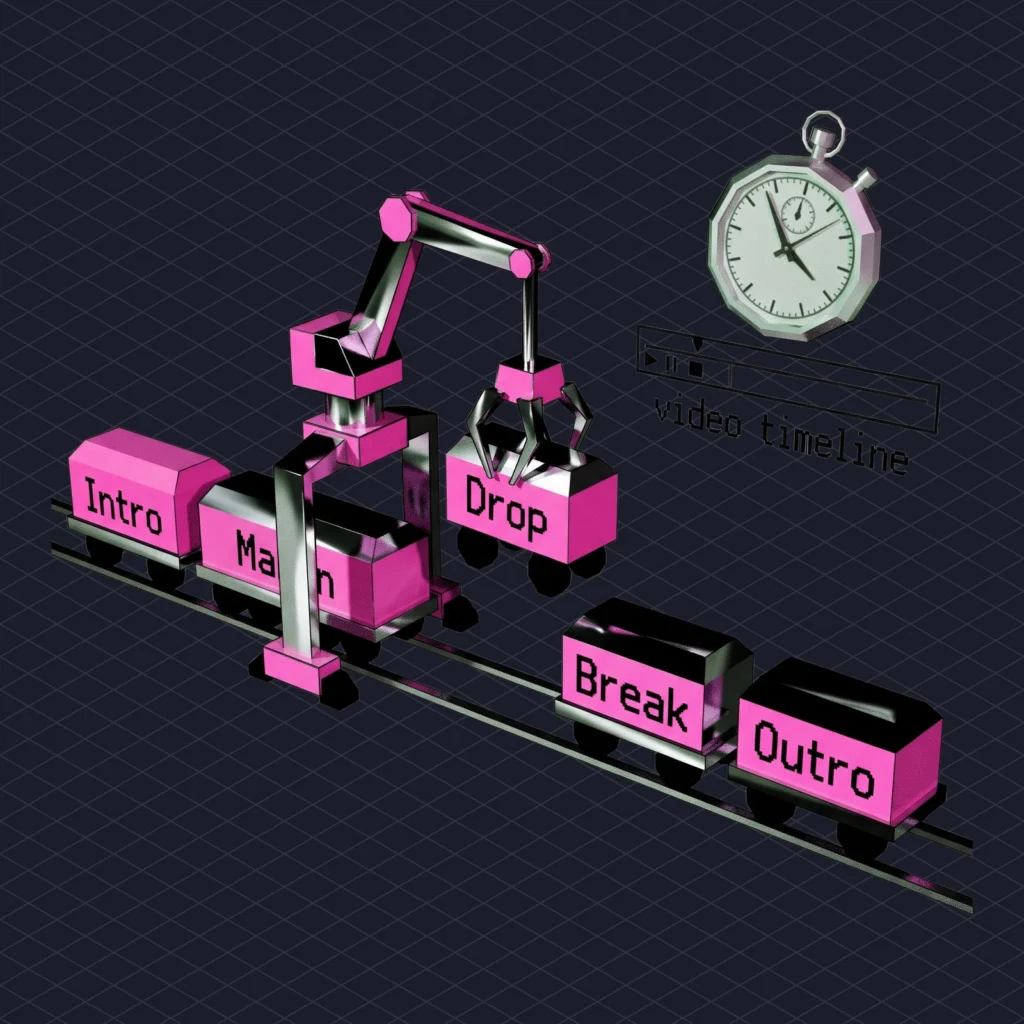
An AI music editor lets you change a track you generated instead of throwing it away and rolling again. Mubert added one to Render on 26 August 2026. It’s called Track Editor. It splits a track into sections (Intro, Main, Break, Drop, Outro) and stems (drums, bass, lead, FX), then lets you rearrange, regenerate or delete those parts and change the duration, BPM and key. This post is for people who make music for videos, podcasts or streams and keep getting a track that is almost right. It covers every control in this AI music editor, what it won’t do and which plans include it.
Regenerating a track you almost like is a slot machine
Regenerating gives you a new track, not a fixed one. You press the button hoping for the same song with a shorter intro. What you get is a different song with a different intro. Sometimes it’s better. Usually it’s just different.
We’ve done this more times than we’ll admit in writing. It goes like this. Version one has the perfect bassline and a drop that lands too early for the cut. Version two fixes the drop but swaps the bassline for something that sounds like a fridge humming in a minor key. By version five you’ve forgotten what you liked about version one, and the video is still waiting. (The video doesn’t mind. The client does.)
Plenty of people do this. Mubert’s own data, last 28 days: creators who generate in Render make 3.5 tracks each. We can’t tell from that number how much is exploring and how much is re-rolling. We know which one we do.
Generation is good at ideas but bad at revisions, because a revision keeps most of the track and changes one thing. That’s an editor’s job. So Render’s AI music now comes with an editor attached.
The AI music editor shows the track as sections and stems
Track Editor opens a Render track as two kinds of parts: sections along the timeline and stems stacked on top of each other. The Track Editor page lists the sections as Intro, Main, Break, Drop and Outro. The stems are Drums, Bass, Lead and FX, plus Vocals when the track has vocals.
A quick translation if you don’t produce music. A section is a stretch of time with a job. The intro sets things up, the break takes energy out and the drop puts it back. A stem is one layer of sound that runs through the whole track, like all the drums together or all the bass together. Sections are the “when”. Stems are the “what”.
Vocals show up as their own stem only when the track has them. An instrumental bed for a voice-over won’t have a Vocals row, and that’s usually what you wanted anyway.
Edits in the AI music editor are instructions, not waveform surgery
Every edit is a plain musical instruction: shorter intro, no drums in the break, a new lead in the drop, a different length. You line the changes up first, then press Remix, and a new track is generated from them. The FAQ calls Track Editor an AI music editor that lets you “direct generated music using musical concepts”. That’s accurate. It’s also a polite way of saying you won’t be touching a waveform.
The page lists three steps. Open one of your generated tracks or a Staff Pick, make your changes, then Remix. Staff Picks are handy when you don’t have an almost-right track of your own yet but want to start from something close.
There’s also a detail under the hood that matters to us. Render builds tracks from samples that human artists upload through Studio, and those artists get paid. So when this AI music editor regenerates a lead, the new one comes from the same artist-made source material. Nobody’s recording got scraped for it.
Sections: shorten the intro, move the drop, cut the outro
The section controls let you add, remove, reorder or change sections. That covers most complaints about a generated track, because most of them are about timing rather than sound.
Take a Short where the first two seconds decide whether anyone stays. A long intro is a problem there, so you cut it or replace it. If the drop lands before your product reveal, you push it later by putting a Main or a Break in front of it. If the track fades out over an end screen you don’t have, you remove or change the Outro. The launch note uses these same examples: “Make the intro shorter. Move the drop.”
Reordering feels like cheating. It isn’t. In a video editor you’d cut the audio, add a crossfade and hope the beat lines up at the join. Here you change the plan and the AI music editor rewrites the track from it. You aren’t stitching two pieces of audio together yourself, so there’s no join to hide.
(It also means no more crossfades timed by squinting at a waveform at 2 a.m. We will miss nothing about that.)
One habit helps: before you open the Editor, put your video’s key moments next to the track’s sections. The hook, the reveal and the call to action each need something from the music. Once you know which section has to land where, the edits mostly decide themselves.
A podcast intro works the same way, just slower. Fifteen seconds of Intro under the host’s cold open, a Main for the theme, then the Outro. If the generated track spends forty seconds building up, that build is the first thing to cut.
Stems in the AI music editor: regenerate or remove one layer
The stem controls let you regenerate or remove the drums, bass, lead or FX, and you can do it inside one section only. That last part is the useful bit.
Removing the drums from the whole track leaves you with a pad (a soft, sustained background). Removing them from the Intro only gives you a quiet opening where the beat arrives with the Main, which is exactly what a talking-head video wants under its first sentence. Regenerate only the lead and you keep the groove you liked. The ringtone melody goes.
This grew out of Quick Remix, which shipped on 28 July 2026. Quick Remix already let you regenerate or remove Drums, Bass, Lead or FX and keep the rest. The AI music editor adds sections on top. Now a change can apply to one part of the track instead of all of it.
We once spent a whole afternoon arguing about whether a podcast intro needs a lead at all. The lead lost. Anyway.
Know one limit before you plan around stems. They stay inside the Editor. According to the FAQ, stems can’t be exported as separate audio files. If you need the drums as their own file for a mix in other software, that’s a different job. Our post on splitting a finished song into stems for a remix covers that route. Render Pro and Ultra also include a Stem Splitter. Per the plan list, that’s 600 minutes a month on Pro and 1,400 on Ultra.
Duration and BPM: make the track fit the cut
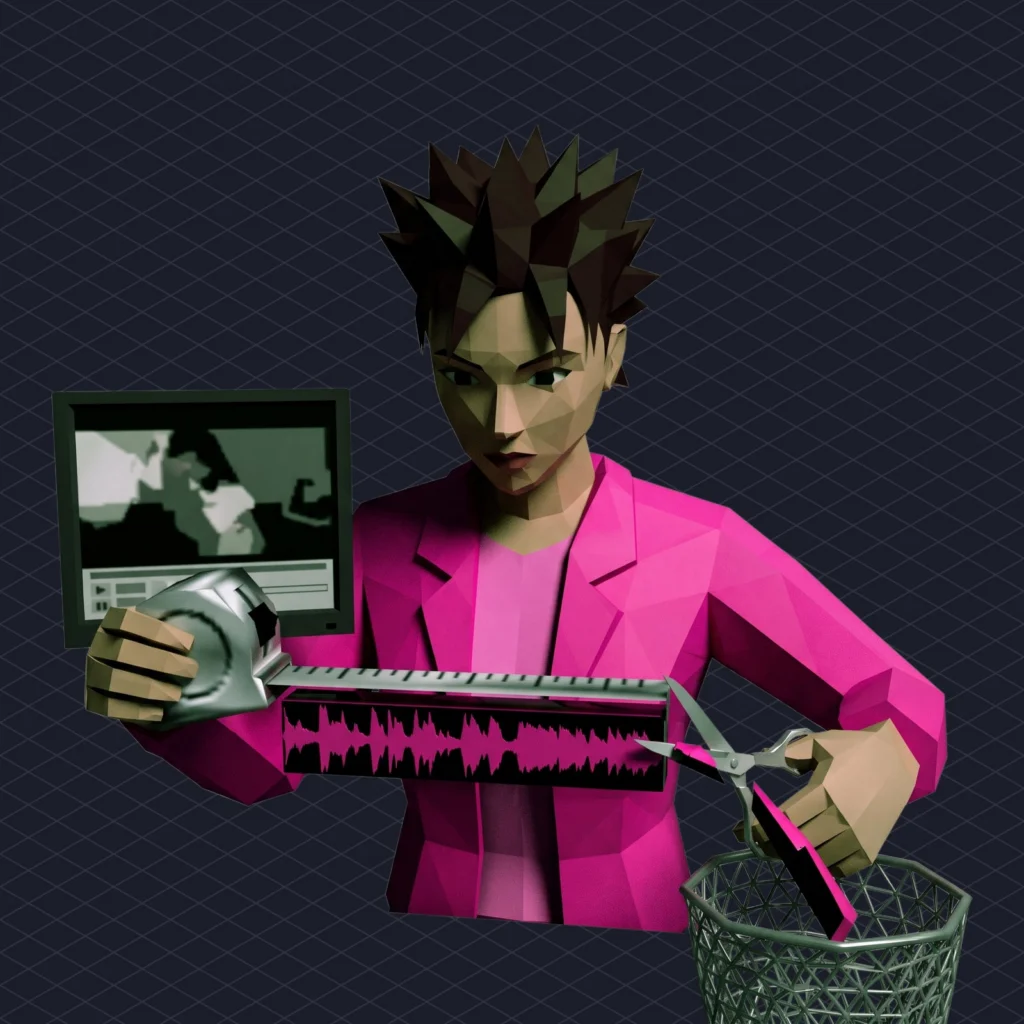
The third group of controls changes the duration, BPM and key and keeps the rest of the track. Duration is the one most people need, because videos come in exact lengths and music, left to its own devices, almost never does.
A 47-second cut needs 47 seconds of music that actually ends, not three minutes that fade out at 0:47. Render already writes music to the length you ask for. The editor lets you change that length later, on AI music you already like, so a re-cut of the video doesn’t mean a new soundtrack.
BPM means beats per minute, so it’s the tempo. It matters when you cut to the beat or when the footage has its own rhythm: footsteps, a workout set, a product turning on a stand. If the music runs slightly faster than the picture, every cut feels a little off. Nobody can say why.

Key changes and client re-cuts take one Remix
Changing the key is one setting and a Remix, and so is fitting an approved track to a shorter spot. Key comes up less often than length. When it does, it really matters: a jingle that has to sit next to a voice, a track that follows another in a playlist, a guitar part you want to play over it. Before the AI music editor, the wrong key meant generating again.
The FAQ also says the Editor works on tracks from any generation method: a text prompt, an image, a previous remix or a Staff Pick. So a track you made from a photo for one video can be fitted to the timing of the next one without starting over.
A combined example helps. Say a client sends a 30-second spot after you scored a 60-second version. You set the duration to 30 seconds, cut the Break, and keep the Drop for the logo. One Remix. The bassline they approved last week is still there.
Every edit is a Remix, and the original stays put
Nothing happens in real time. You set up your edits, press Remix and wait for a new track. The FAQ says it plainly: there’s “no audio preview of pending edits before generation finishes”.
This trips up people who come from a DAW (a digital audio workstation, the kind of app where you build songs clip by clip). In a DAW you move a clip and hear the result straight away. An AI music editor works the other way round: you describe the change first and hear it afterwards. It’s closer to giving notes to a session player than to dragging clips around.
Two things make that easier than it sounds. A Remix never overwrites the original. It’s saved as a new generated track and the old one stays as it was. You can also open the new version in the Editor right away. That gives you a simple loop: track, remix, new track, remix again.
Each Remix counts against your plan’s monthly generation limit, just like a fresh generation. So group your edits. Five changes in one Remix use one generation. Five separate Remixes use five.
We learned this the slow way. Our first afternoon with the AI music editor went like this: shorten the intro, Remix, listen, move the drop, Remix, listen, and so on. Generations used: six. Generations needed: one.
There’s a practical upside to keeping every version. Put the original and the remix side by side under the same cut and pick by ear, with the picture running. That beats remembering whether version three had the nicer hi-hats. (It didn’t. It never does.)
What the AI music editor will not do
Track Editor has firm limits, and the FAQ lists them openly:
- The editor only opens AI music generated in Render. It doesn’t accept uploads, so your own song or a file from another tool won’t open.
- Stems are editable inside the Editor but can’t be exported as separate files.
- You can’t preview edits before the Remix finishes generating.
- It isn’t a DAW: no MIDI editing, sample editing, custom effect chains, mixer automation or manual mastering.
That list sounds like a lot of no. In practice, most of it is stuff a video editor never wanted to do in the first place. Nobody scoring a 30-second Reel misses mixer automation.
The FAQ even names the software it doesn’t replace: Ableton Live, Logic Pro, Pro Tools and FL Studio. We find that refreshing. A toaster that admits it isn’t an oven is a toaster you can trust with toast.
What comes out is a normal Render track. It exports under your plan’s usual terms, which on the plans that include the Editor means WAV. The licence doesn’t change either: the new track has the same rights as everything else on your Render plan. Licence scope is still a legal question. Read the terms for your plan before a commercial project rather than going by a blog post (including this one).
If you’re a producer who wants every note under your control, this isn’t your tool, and the FAQ doesn’t pretend otherwise. This AI music editor is built for people who know what they want the music to do and don’t want to learn compression to get there.
Track Editor is on Render Pro and Ultra only
Track Editor comes with Render Pro and Ultra. It isn’t available on Free or Creator. Pro lists 500 tracks a month and lengths of up to 25 minutes. Ultra lists 1,000 tracks a month and up to 60 minutes. Both also list commercial usage and a Copyright Checker as a bonus.
Prices change (there’s a seasonal deal running as we write), so check the live pricing on the Track Editor page rather than trusting a number in a blog post.
Picking between them comes down to one fact. Every Remix is a generation, so the monthly track count is also your editing budget. If you iterate a lot on each track, the count matters more than the length cap. If you make long ambient pieces, streams or hour-long background beds, the 60-minute cap is the reason to look at Ultra.
The AI music editor won’t stop you from re-rolling. It just makes re-rolling optional. You can still treat Render like a slot machine. Now you can keep the reels you like and spin only the one that came up wrong.
A checklist for your first week with an AI music editor
- Open the last generated track you almost used and write down the one thing wrong with it.
- Sort it: sections, stems or fit.
- Set up every change before you press Remix, so one generation covers all of them.
- Shorten the Intro to suit your video’s first seconds and remove the drums under any voice-over opening.
- Set the duration to your cut’s exact length.
- Play the original and the remix under the same edit before you delete either one.
- Plan a stem splitter step if you need separate stems in a DAW, because the AI music editor won’t export them.
Then open the Track Editor and fix the track you almost liked.






 Who we are


