


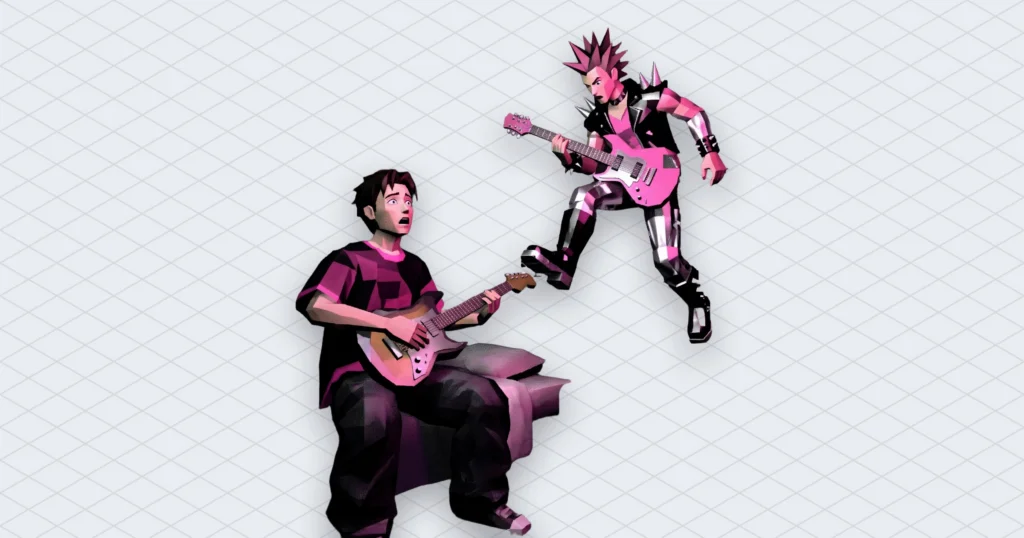
A guitar backing track is the original song with the guitar taken out, so you play the part over the real drums, bass and vocals. Upload the song to a guitar remover and you hear a 30-second preview without an account, then a free sign-up gets you the whole song as two files: the guitar on its own and everything else. This post is for guitarists and piano players who are tired of practising to a metronome. It covers which recordings split cleanly, how to keep the original part as a faint guide, how to slow a guitar backing track down without changing the key, and what happens when you post the result.
The other option is playing along with the record itself. We did that for years. The guitarist on the record plays your part perfectly, louder than you, every single time, and never once lets you take the solo.
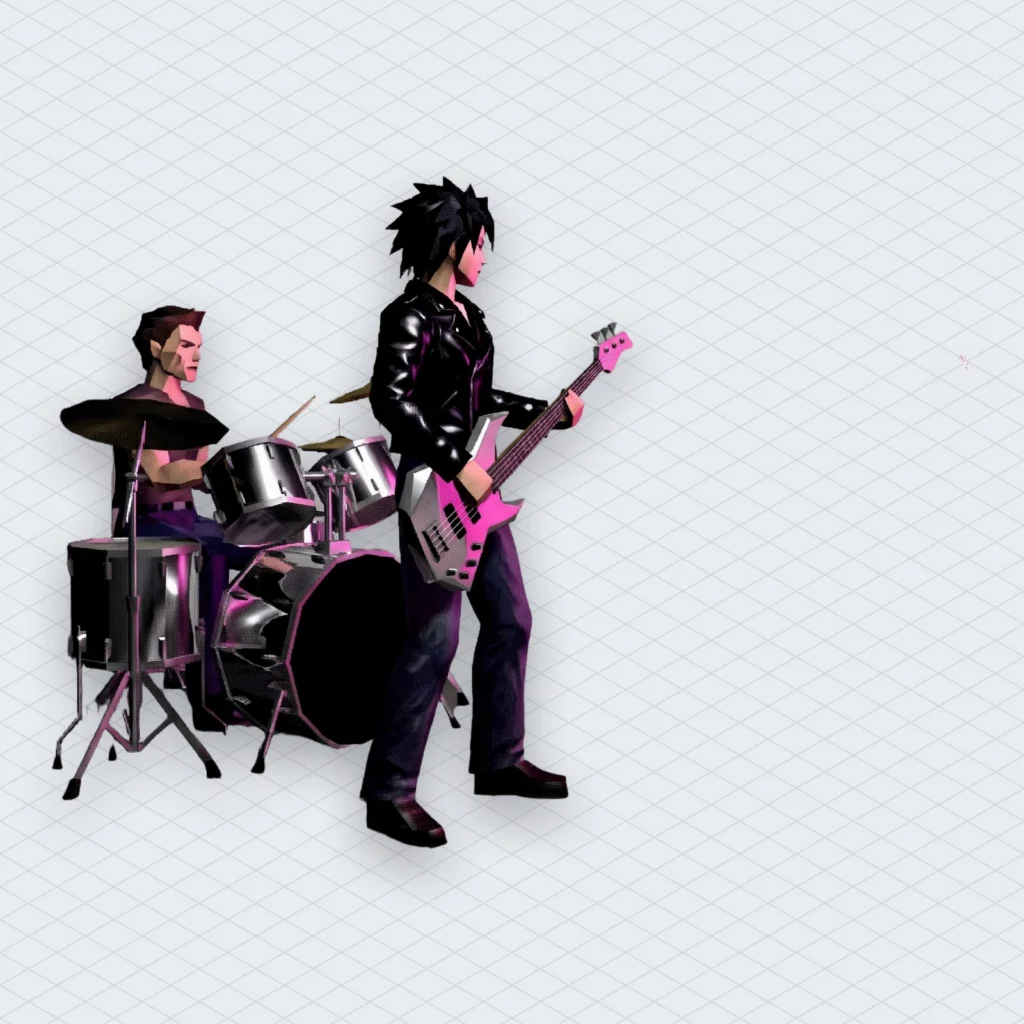
A guitar backing track from a song is the song minus one stem
A guitar backing track made from a song is the full mix with one instrument lifted out, and a source separation model does the lifting. A “stem” is one layer of a song: the drums, the bass, the vocals, the guitar. The separation model listens to the finished stereo mix, works out which parts of the sound belong to which instrument, and writes each one to its own file.
That word “works out” is carrying a lot. You do not have the studio session where the guitar sat on its own track. That session lives on a hard drive somewhere at the label. What you have is the mix, with every instrument glued together, and the model has to un-glue it. It is like asking someone to turn a smoothie back into a banana, and the remarkable thing is how often you get something banana-shaped.
Mubert’s Guitar Remover has two modes. “Remove guitar” gives you the song without guitar, which is the backing track you play over. “Extract guitar” gives you the guitar alone, which is useful when you want to hear what the player actually did under all that cymbal. The tool takes MP3, WAV, FLAC, M4A or MP4 video. That last format matters more than it looks, because plenty of the songs people want to learn live inside a concert clip on their phone.
Pick a recording that splits cleanly before you upload anything
The cleaner the source file, the cleaner the split, so start with a lossless copy (WAV or FLAC) if you have one. MP3 and other compressed formats throw away detail to save space. That detail is exactly what the model uses to tell a guitar from a keyboard playing in the same register, so a better file gives it more to work with.
Studio recordings beat live ones. On stage, the guitar amp leaks into the vocal microphones and the drum microphones, so the guitar is smeared across the whole mix. Engineers call this “bleed”. The model can remove the guitar it hears clearly, but the faint copy coming through the drum mics often stays behind in the backing track. Feed it a phone video from a pub gig and expect a guitar-free version of the pub.
Very old mono recordings are harder too. In stereo, instruments sit in different places between the left and right speakers, which gives the model a clue. In mono, everything sits in the middle, so the model has to separate by sound alone. It still works. It just works less tidily.
If a song exists as both a remaster and an original pressing, try the remaster first. Then try the other one if the result sounds watery. It costs you one more upload.
Make the guitar backing track in four steps
Making the guitar backing track takes one upload and a few clicks, and you can hear a 30-second preview before you create an account. Open Guitar Remover. Drop in the song and leave “Remove guitar” selected. Listen to the preview with headphones, because laptop speakers hide most of the artefacts you will hear later through an amp.
If the preview sounds usable, sign up free to process the full song. According to our Stem Splitter page, a free account includes 20 minutes of songs a month and full-length MP3 downloads. WAV downloads start at the Creator plan. For what each plan costs, check the live pricing page, because we are not going to print a number that might change next week.
Then plug in, press play and come in on the right beat. That last part is on you.
One practical tip. Download both files, the backing track and the extracted guitar, even if you only plan to use one. The extracted guitar is the closest thing you have to a lesson from the original player, and you will want it the first time you cannot work out a fill.
Keep the original guitar as a quiet guide instead of muting it
The tool page suggests turning the guitar track down “instead of muting it”, and that is the most useful idea in the whole workflow. Put both files in any audio editor or DAW (a digital audio workstation, the recording software on your computer). Set the backing track to full volume and the extracted guitar to a whisper.
At a whisper, the original part tells you where the bends land, when the pickup notes start and how long a chord rings before the change. Your own playing sits on top and covers it. If you drift, you hear the original underneath you, politely correcting your timing.
Turn the guide down a little every few days. When you stop noticing it, mute it. It is training wheels for your ears, and nobody has to know you used them.
We covered the same idea for singers in our post on making a karaoke version of any song, where the original vocal stays as a quiet guide. It works the same way for guitar, minus the people at the bar who want you to stop.
Piano play-along tracks need the six-stem split
Guitar Remover handles guitar only, so for a piano part you need our Stem Splitter in six-stem mode, which is on the Pro and Ultra plans. The four-stem split gives you vocals, drums, bass and “the rest”. Piano lives in “the rest”, together with guitars, strings, synths and whatever the producer added at 3 a.m. Six stems split guitar and piano out separately.
With six stems, a pianist mutes the piano stem and keeps everything else. A guitarist and a pianist practising together can mute both and play the song as a duo over that backing track, with the original rhythm section holding them up.
One limit applies to both tools. All guitars come out together on one track. Lead and rhythm guitar are not separated, so you cannot keep the original rhythm part and replace only the solo. The workaround is the quiet guide from the previous section. Keep the extracted guitar low, play the solo louder on top, and let the original rhythm part ghost along underneath.
If you want to compare tools before you pick one, we ran the same song through six of them in our stem splitter test, including what each free preview actually lets you download.
Slow the guitar backing track down without changing the key
To slow a guitar backing track down for practice, use a time-stretch effect, which changes the tempo and keeps the pitch. In the free editor Audacity, that is Change Tempo. The manual describes it as a time-stretching effect that changes tempo and length while leaving pitch alone. You type a percentage or drag a slider, and the BPM and length fields update to match.
Do not grab the other effect by mistake. Audacity’s Change Speed and Pitch changes both at once, which is what happens when a turntable runs slow. The song gets slower and lower, and suddenly you are playing in a key the song was never in.
The manual also warns that extreme settings can add audible distortion. In practice, a small slowdown sounds fine and a huge one starts to sound like the band is underwater. So slow down only the section you are struggling with. Cut out the hard eight bars, slow them down, and loop them (play them on repeat, back to back). Bring the tempo up a little each session until you reach the original speed.
Tuning is the other trap. Some records are tuned lower than standard, or the tape ran slightly fast during mastering, and your guitar will sound sour against the backing track even when you play the right notes. You can retune the guitar to the record, or shift the pitch of the track in your editor. Retuning the guitar usually sounds better, because pitch-shifting a whole mix adds its own artefacts on top of the separation ones.


What the separation gets wrong, and how to live with it
Every split leaves some artefacts, and knowing the usual ones saves you from blaming your amp. The most common is a faint ghost of the guitar left in the backing track, especially on loud chords. Cymbals can smear into a soft hiss. Sustained chords on other instruments sometimes sound slightly watery, as if they were recorded through a bathroom door.
Instruments that share the guitar’s frequency range cause the most confusion. Electric piano, organ and distorted synths all sit roughly where a guitar sits. The model sometimes takes a bit of an organ along with the guitar, or leaves a bit of a guitar behind with the organ. Songs where a keyboard doubles the guitar line are the hardest case. The model is, in effect, being asked to split one note into two players.
There is a theory among some guitar teachers that a slightly underwater backing track is good for you, because it forces you to lock onto the drummer instead of the mix. We have no evidence for this. We like it anyway.
Anyway. The honest fix for most artefacts is to stop worrying about them. Once you play, your guitar fills the same space the ghost occupies. The ghost disappears. If a section is really bad, go back to the source file and try a cleaner version of the song.
Posting a play-along video: the band on the track is still someone else’s recording
Removing the guitar from a backing track does not change who owns the recording. Same band, same owner. The drums, bass and vocals left in your file are still the original master recording, owned by the label. The song itself (the melody, lyrics and chords) still belongs to its writers and publisher. Practising at home with the file is your own business. Posting a video of it is publishing, and that is a different question.
On YouTube, an automated match through Content ID can put a claim on the video. YouTube’s help page on editing claimed content lists the options: trim out the segment, replace the song, or erase the song. The catch is in one line. The claim comes off only when all the claimed content is trimmed, replaced or muted, and in a play-along video the claimed content is the entire soundtrack. Erasing it leaves you playing guitar to silence, which is a fine practice method but a strange video.
Disputing a claim on a guitar backing track video rarely works
Disputing makes sense only when you hold the rights. YouTube’s page on how to dispute a Content ID claim says the claimant then has 30 days to respond. A guitar cover over a label’s backing track rarely gives you a valid reason, so read that page before you click anything.
Claims are common. In Mubert’s own data for the last 28 days, about one in four results from our copyright checker found a rights holder’s claim on the uploaded track (24.4%, down from 26.8%). Those are tracks people uploaded to check, not play-along videos in particular. Still, it shows how often a song that sounds harmless turns out to have an owner.
If you want music that is safe to post and you are not sure where to find it, our post on what creators mean by no copyright music goes through the five places it actually comes from.
For a backing track you can publish, generate an original one
If the goal is a video you can post, the backing can be new music instead of someone else’s record. This matters for jam channels, gear demos and improvisation practice, where nobody needs one particular hit song. They need a groove in the right key and tempo that lasts long enough to play over.
Our generator, Render, does that. You describe a mood, genre or tempo, and it writes an original backing track of the exact length you need, ready for a guitar on top. The music is generated from samples uploaded by real artists, who get paid for it. It is cleared for commercial use under the platform licence, and the exact scope depends on the plan, so read yours before a sponsored video. The prompt at the top of this post makes a slow blues rock groove with drums and bass.
That is not a replacement for learning the songs you love. It is the version you can post afterwards without wondering whose drummer is in your video.
A checklist for your first guitar backing track
- Find a studio recording of the song as WAV or FLAC rather than a phone clip.
- Upload it to Guitar Remover and check the 30-second preview on headphones.
- Sign up free and download both the guitarless track and the extracted guitar.
- Keep the original guitar at a whisper under the backing track instead of muting it.
- Slow down the hardest eight bars with Audacity’s Change Tempo, not Change Speed and Pitch.
- Use the six-stem split if the part you want to learn is piano.
- Read YouTube’s claim options before you post a play-along over the original band.
The guitarist on the record still plays your part perfectly. Now he does it quietly, from the next room, and only when you ask.






 Who we are


